

 PagerDuty
 PagerDuty
PagerDuty + ThirdEye Integration Benefits
- Notify on-call responders based on alerts sent from ThirdEye.
- Send event data from ThirdEye including the node and monitor that triggered the event.
- Incidents will automatically resolve in PagerDuty when the Incident is cleared in ThirdEye.
How it Works
- Incidents raised in ThirdEye will send an event to a service in PagerDuty. Events from ThirdEye will trigger a new incident on the corresponding PagerDuty service, or group as alerts into an existing incident.
- Once the Incident is resolved, a resolve event will be sent to the PagerDuty service to resolve the alert, and associated incident on that service.
Requirements
- PagerDuty integrations require an Admin base role for account authorization. If you do not have this role, please reach out to an Admin or Account Owner within your organization to configure the integration.
Support
If you need help with this integration, please contact support@logicvein.com
Integration Walkthrough
In PagerDuty
Integrating With a PagerDuty Service
- From the Configuration menu, select Services.
- There are two ways to add an integration to a service:
- If you are adding your integration to an existing service: Click the name of the service you want to add the integration to. Then, select the Integrations tab and click the New Integration button.
- If you are creating a new service for your integration: Please read our documentation in section Configuring Services and Integrations and follow the steps outlined in the Create a New Service section, selecting Events API V2 as the Integration Type in step 4. Continue with the In ThirdEye section (below) once you have finished these steps.
- Select Events API V2 from the Integration Type menu.
- Click the Add Integration button to save your new integration. You will be redirected to the Integrations tab for your service.
- An Integration Key will be generated on this screen. Keep this key saved in a safe place, as it will be used when you configure the integration with ThirdEye in the next section.
In ThirdEye
To raise Incidents from ThirdEye
- From the Monitors tab, select Alert Policies.
- Choose an existing Alert Policy, or create a new one for this integration.
- Within that Alert Policy click New Action and choose Webhook.
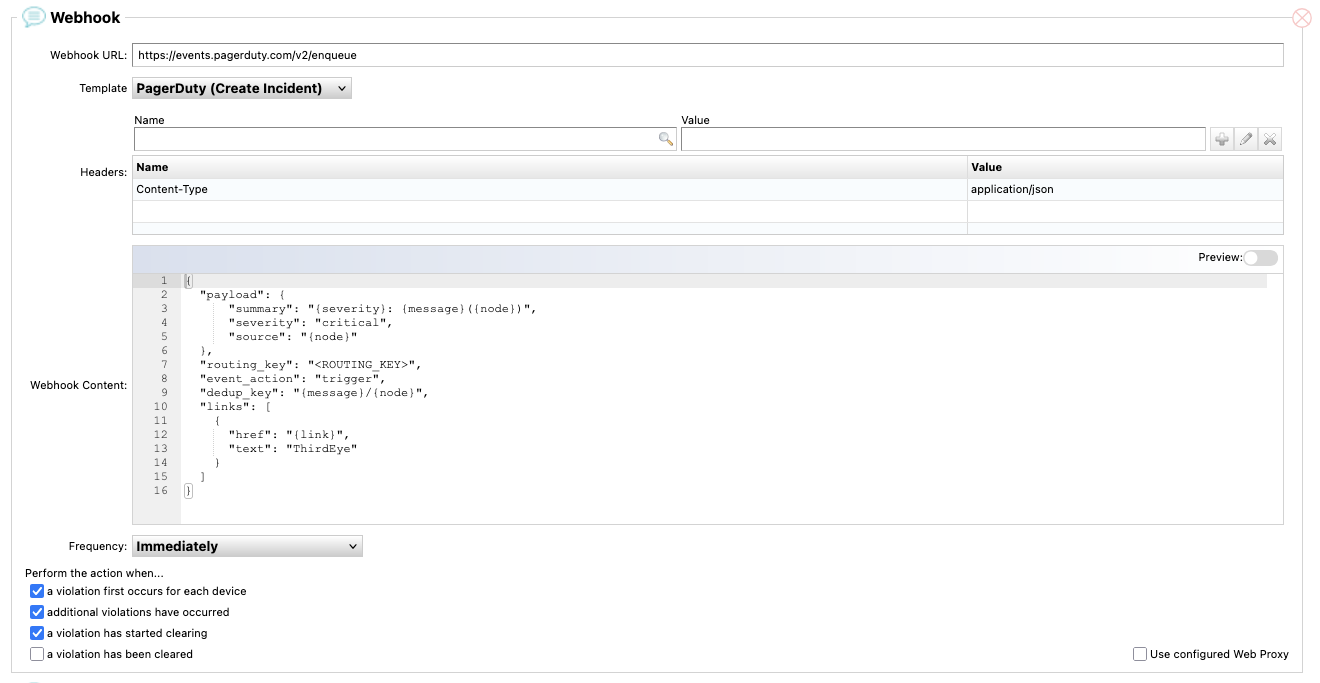
- Type https://events.pagerduty.com/v2/enqueue into the Webhook URL field.
- Select PagerDuty (Create Incident) as the Template.
- In the Webhook Content field, locate <ROUTING_KEY> and replace that with your Integration Key.
- In the options for Perform the action when…, deselect A violation has been cleared.
To resolve Incidents when they are cleared in ThirdEye
- From the Monitors tab, select Alert Policies.
- Choose an existing Alert Policy, or create a new one for this integration.
- Within that Alert Policy click New Action and choose Webhook.
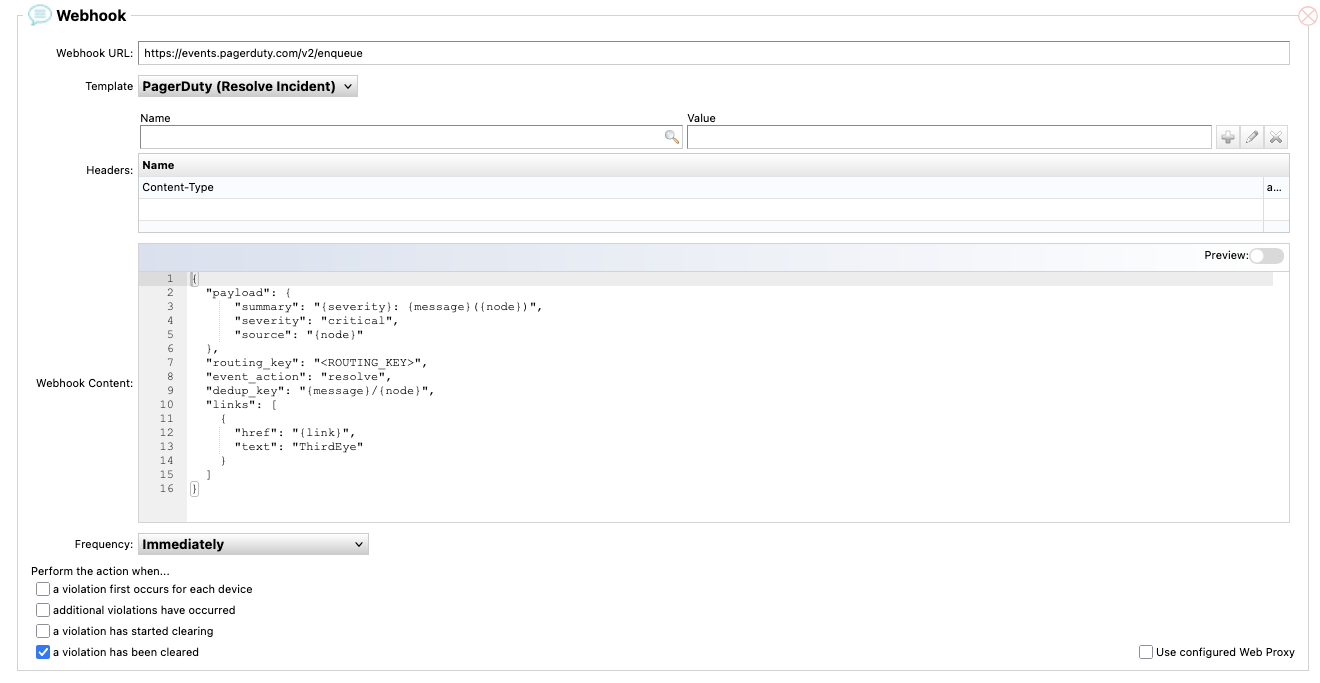
- Type https://events.pagerduty.com/v2/enqueue into the Webhook URL field.
- Select PagerDuty (Resolve Incident) as the Template.
- In the Webhook Content field, locate ><ROUTING_KEY> and replace that with your Integration Key.
- In the options for Perform the action when…, deselect all options except for A violation has been cleared.
How to Uninstall
- From the Monitors tab, select Alert Policies.
- Select the Alert Policy you’re uninstalling this integration from.
- Locate the Webhook actions created earlier and remove them from this policy by clicking the red X located in their top right corners.
